
- Published
- 8 October 2026
- Last reviewed
- 8 October 2026
What you will make
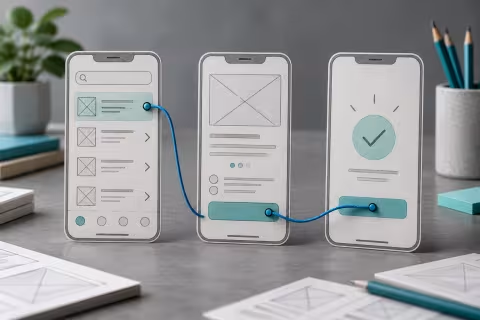
A three-screen prototype for a fictional workshop booking journey: Browse, Details and Confirmation. You will test whether a person can open a workshop, request a place and return to the list. Allow about 35 minutes. The prototype simulates screens; it does not submit a real booking.
Before you start
You need a Figma account, a Figma Design file you can edit and a desktop browser or the Figma desktop app. Use standard frames and basic prototype connections. Interface labels and the placement of controls can change. The cover is an illustrative paper-wireframe scene, not a screenshot to copy pixel for pixel.
1. Create three top-level frames
Create a new Design file. Use the Frame tool to draw a phone-sized frame about 390 by 844 pixels and name it Browse. Make two more frames of the same size and name them Details and Confirmation. Place them side by side on the canvas. Use a light background, dark text and simple rectangles. Each screen must be a frame rather than a group of loose layers.
2. Draw the Browse screen
Add a title, Workshops, followed by one card labelled Introduction to digital skills. Add a short description and a visible View workshop button. Use a grey rectangle as the button background and place its text above it. Group the button rectangle and label together within Browse so that the entire visible button can be the interaction target. Keep the drawing deliberately simple.
3. Draw the other screens
Inside Details, add the workshop name, a brief fictional description, Request a place and Back to workshops buttons. Inside Confirmation, add Request received, a short message saying this is a practice confirmation, and Back to workshops. Group each button background and its label. Check the Layers panel: every button must belong to its intended frame.
4. Connect the forward journey
Select the View workshop button group, then open Prototype in the right sidebar. Add an interaction using the plus control in Interactions, or drag the connection handle to Details. Set the trigger to On click, the action to Navigate to, the destination to Details and the transition to Instant. Repeat for Request a place, targeting Confirmation. Keep the interaction on the button, not on the whole frame.
5. Connect the return journey
Connect both Back to workshops button groups to Browse with On click, Navigate to and Instant. Select Browse and establish it as the flow starting point in Prototype. Name the flow Workshop booking practice. Do not use an external website action for these internal screen transitions.
6. Present and test
Open the prototype presentation using Present. Start at Browse. Click View workshop: Details should appear. Click Request a place: Confirmation should appear. Click Back to workshops: Browse should reappear. Also test Details > Back to workshops without requesting a place. Repeat the journey after closing and reopening the presentation.
7. Observe a practice user
Ask a colleague to “find the digital skills workshop and request a place” without explaining which control to click. Record where they hesitate and which screen they expect next. Improve one label or layout choice and repeat the task. A successful click sequence demonstrates the prototype connections; it does not establish that the real service is usable or accessible.
If a connection fails
- No connection control: confirm that you are in a Design file, have edit access and have selected a layer inside a frame.
- Wrong destination: inspect the destination of the selected button interaction.
- Only part of a button works: put the interaction on the group containing both its text and background.
- Presentation starts elsewhere: set Browse as the flow starting point and select that flow.
Check your learning
All four transitions should work: Browse to Details, Details to Confirmation, Details to Browse and Confirmation to Browse. Explain the difference between a clickable prototype and a working booking service. Keep the file so that you can edit and retest the journey.
Official guidance
Figma: create and manage prototype flows
Cover image: AI-generated illustrative scene created specifically for this resource.